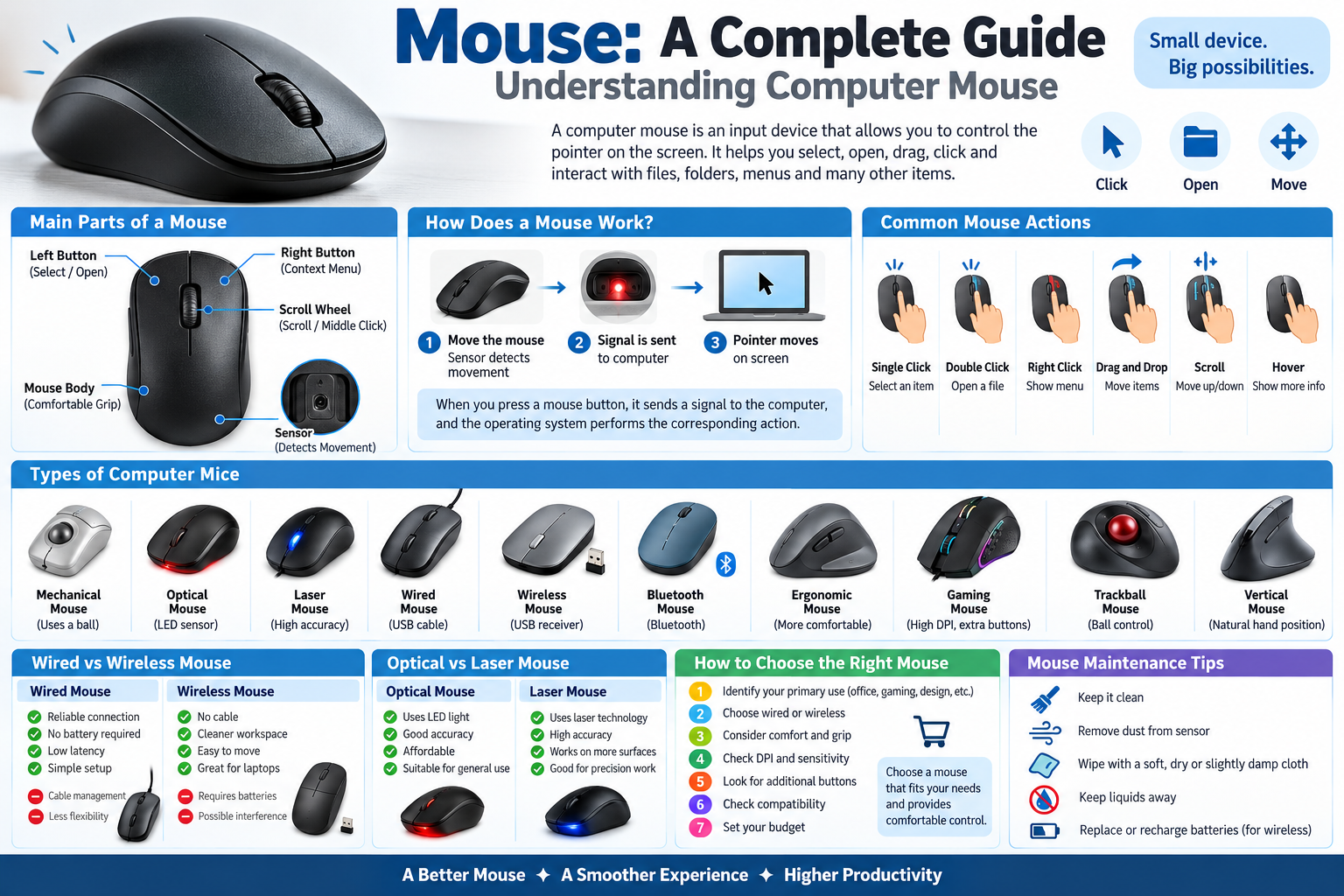
A computer mouse is one of the most commonly used input devices. It allows users to interact with a computer by moving a pointer on the screen, selecting items, opening files, clicking buttons, dragging objects, and performing many other tasks.
Whether you are working on documents, browsing the internet, designing graphics, playing games, or using software applications, a mouse makes computer navigation easier and more convenient.
Modern mice are available in different shapes, sizes, technologies, and features. From traditional wired mice to wireless, optical, ergonomic, and gaming mice, there are many options available today.
In this guide, we will understand what a mouse is, how it works, its main components, different types of mice, mouse buttons, common mouse actions, and how to choose and maintain the right mouse.
What Is a Computer Mouse?
A mouse is an input device used to control the pointer or cursor on a computer screen.
It allows users to interact with graphical elements such as:
- Icons
- Files and folders
- Menus
- Buttons
- Images
- Text
- Applications
- Web pages
A typical computer mouse has at least two main buttons and a scroll wheel.
For example:
- Left Click – Selects or opens an item.
- Right Click – Opens a context menu.
- Scroll Wheel – Moves up and down through a document or webpage.
How Does a Computer Mouse Work?
When you move a mouse, its internal sensor detects the movement and sends information to the computer.
The computer processes this information and moves the pointer on the screen accordingly.
Modern optical and laser mice use light and sensors to detect movement.
For example:
Move the mouse → Sensor detects movement → Signal is sent to computer → Pointer moves on screen
When you press a mouse button, the mouse sends another signal to the computer. The operating system then performs the appropriate action.
For example:
- Clicking a file selects it.
- Double-clicking an application icon may open the application.
- Right-clicking an item displays additional options.
- Scrolling moves through a webpage or document.
Main Components of a Computer Mouse
A typical mouse consists of several important components.
1. Left Button
The left button is commonly used for selecting, opening, and interacting with items.
2. Right Button
The right button usually opens a context menu containing additional commands and options.
3. Scroll Wheel
The scroll wheel helps users move vertically through documents and webpages.
In many modern mice, the scroll wheel can also be pressed as a middle button.
4. Sensor
The sensor detects the movement of the mouse.
Most modern mice use optical or laser sensors.
5. Circuit Board
The circuit board processes signals generated by mouse movement and button presses.
6. Connection
A mouse can connect to a computer using:
- USB cable
- Bluetooth
- Wireless USB receiver
7. Mouse Body
The outer body provides the structure and allows the user to comfortably hold and operate the mouse.
Types of Computer Mice
Different types of mice are designed for different purposes.
The most common types include:
- Mechanical Mouse
- Optical Mouse
- Laser Mouse
- Wired Mouse
- Wireless Mouse
- Bluetooth Mouse
- Ergonomic Mouse
- Gaming Mouse
- Trackball Mouse
- Vertical Mouse
1. Mechanical Mouse
A mechanical mouse uses a small rubber or metal ball underneath the mouse to detect movement.
As the mouse moves, the ball rotates and transfers movement information to internal sensors.
Mechanical mice were commonly used with older computers but are now largely replaced by optical and laser mice.
Advantages
- Simple technology
- Worked on many older surfaces
- Easy to understand
Disadvantages
- Requires regular cleaning
- Moving parts can wear out
- Less accurate than modern mice
2. Optical Mouse
An optical mouse uses an LED light and an optical sensor to detect movement.
It is one of the most commonly used types of mouse today.
Optical mice generally provide accurate movement without the mechanical ball found in older mice.
Common Uses
- Home computers
- Offices
- Schools
- Laptops
- General computer work
3. Laser Mouse
A laser mouse uses a laser instead of a traditional LED-based optical system to detect movement.
Laser mice can offer high tracking accuracy and may work effectively on a wider variety of surfaces, although performance varies by model and surface.
They are often used by people who require precise cursor movement.
4. Wired Mouse
A wired mouse connects directly to a computer using a cable, usually through a USB port.
Advantages of Wired Mouse
- Reliable connection
- No battery required
- Simple plug-and-play setup
- Usually low latency
- Suitable for long-term use
Disadvantages
- Cable can create clutter
- Limited movement range
- Less convenient for portable setups
Wired mice are commonly used in:
- Offices
- Computer labs
- Schools
- Gaming setups
- Desktop computers
5. Wireless Mouse
A wireless mouse communicates with a computer without using a traditional cable.
It commonly uses a USB wireless receiver.
Wireless mice provide greater freedom of movement and help maintain a cleaner desk setup.
Advantages
- No cable
- Cleaner workspace
- Easy to move
- Convenient for laptops
Disadvantages
- Requires batteries or charging
- Wireless connection can occasionally be affected by interference
- The receiver can be misplaced
6. Bluetooth Mouse
A Bluetooth mouse connects directly to a compatible computer or device using Bluetooth technology.
Unlike many wireless mice, a Bluetooth mouse may not require a separate USB receiver.
It is especially useful for laptops and modern devices with Bluetooth support.
Advantages
- No cable
- No USB receiver required
- Convenient for laptops
- Easy to carry
7. Ergonomic Mouse
An ergonomic mouse is designed to provide a more comfortable hand position.
Its shape may reduce the need to keep the wrist and hand in an uncomfortable position during extended computer use.
Ergonomic mice are available in different shapes and designs.
They can be useful for people who spend many hours working with a computer.
8. Gaming Mouse
Gaming mice are designed for computer gaming and often provide additional features compared with standard mice.
Common gaming mouse features include:
- High DPI settings
- Programmable buttons
- Adjustable sensitivity
- RGB lighting
- Fast response
- Customizable software
- Specialized grips
Gaming mice are particularly useful for games that require fast and precise pointer movement.
9. Trackball Mouse
A trackball mouse contains a large ball that can be rotated using the fingers or thumb.
Instead of moving the entire mouse across the desk, the user moves the trackball to control the pointer.
Advantages
- Requires less desk space
- Useful for precise cursor control
- Does not need to be physically moved across the desk
Trackball mice can be useful in certain professional and specialized environments.
10. Vertical Mouse
A vertical mouse has a tall design that allows the hand to remain in a more natural handshake-like position.
It is designed primarily with hand and wrist comfort in mind.
Vertical mice are often considered by people who spend long periods using a mouse.
Important Mouse Buttons and Controls
Most modern mice include several controls.
Left Mouse Button
Used for:
- Selecting an item
- Opening files
- Clicking buttons
- Dragging objects
- Selecting text
Right Mouse Button
Used to display a context menu.
For example, right-clicking a file may provide options such as:
- Open
- Rename
- Copy
- Delete
- Properties
Scroll Wheel
Used to:
- Scroll webpages
- Move through documents
- Navigate long lists
The scroll wheel can often also be clicked to perform additional functions.
Side Buttons
Some mice include additional buttons on the side.
These may be used for:
- Back
- Forward
- Gaming commands
- Custom shortcuts
Common Mouse Actions
Learning basic mouse actions is essential for computer beginners.
1. Single Click
Pressing the left mouse button once.
Used for: Selecting an item.
2. Double Click
Pressing the left mouse button twice quickly.
Used for: Opening files, folders, and applications in many desktop environments.
3. Right Click
Pressing the right mouse button once.
Used for: Opening a context menu.
4. Drag and Drop
Pressing and holding the left mouse button while moving the mouse and then releasing it.
Used for:
- Moving files
- Moving objects
- Selecting items
- Rearranging content
5. Scroll
Rotating the mouse wheel.
Used for: Moving up and down through webpages, documents, and lists.
6. Hover
Moving the mouse pointer over an item without clicking.
Some applications display additional information or options when you hover over an object.
7. Middle Click
Pressing the scroll wheel as a button.
Depending on the application, it may perform different functions.
For example, in many web browsers, clicking a link with the middle button can open it in a new tab.
Mouse DPI Explained
DPI stands for Dots Per Inch.
In simple terms, DPI describes how much the pointer can move relative to physical mouse movement.
A higher DPI setting generally makes the pointer move farther with less physical mouse movement.
A lower DPI setting generally provides slower and more controlled pointer movement.
Lower DPI
Useful for:
- Precision work
- Certain gaming situations
- Detailed graphics work
Higher DPI
Useful for:
- Fast cursor movement
- Large or high-resolution displays
- Users who prefer less physical mouse movement
The best DPI depends on the user’s preference and the task being performed.
Wired vs Wireless Mouse
Both wired and wireless mice have advantages and disadvantages.
| Feature | Wired Mouse | Wireless Mouse |
|---|---|---|
| Connection | USB cable | Wireless/Bluetooth |
| Battery | Not required | Usually required |
| Mobility | Limited | High |
| Desk Setup | Cable required | Cleaner |
| Reliability | Very reliable | Depends on wireless connection |
| Portability | Moderate | Excellent |
Which One Should You Choose?
Choose a wired mouse if:
- You use a desktop computer.
- You want a reliable connection.
- You don’t want to charge or replace batteries.
- You are looking for a simple option.
Choose a wireless mouse if:
- You prefer a cable-free workspace.
- You frequently use a laptop.
- You need portability.
- You want greater freedom of movement.
Optical vs Laser Mouse
Optical and laser mice both use sensors to detect movement.
| Feature | Optical Mouse | Laser Mouse |
|---|---|---|
| Technology | LED + optical sensor | Laser + sensor |
| Accuracy | Good | Often very high |
| Common Use | General computing | Precision tasks |
| Cost | Usually affordable | Can be more expensive |
| Surface Compatibility | Depends on model | Depends on model |
For normal office, school, and home use, an optical mouse is usually more than sufficient.
How to Choose the Right Mouse
Choosing the right mouse depends on how you use your computer.
Step-by-Step Selection Guide
1. Identify Your Primary Use
First decide whether you mainly use the mouse for:
- Office work
- Internet browsing
- Education
- Graphic design
- Programming
- Gaming
2. Choose Wired or Wireless
Decide whether you prefer a traditional cable or a wireless setup.
3. Consider Comfort
If you use a mouse for many hours, choose a shape and size that feels comfortable in your hand.
4. Check DPI and Sensitivity
If you require precise or fast pointer movement, check the mouse’s DPI and sensitivity options.
5. Consider Additional Buttons
For gaming, productivity, or specialized software, additional programmable buttons can be useful.
6. Check Compatibility
Make sure the mouse is compatible with your computer or operating system.
7. Set Your Budget
Choose a mouse that offers the features you actually need within your budget.
Mouse Maintenance Tips
Proper maintenance can help keep your mouse working smoothly.
Keep Your Mouse Clean
Dust and dirt can accumulate around the buttons, sensor, and scroll wheel.
Regular cleaning can help maintain reliable operation.
Simple Cleaning Steps
- Disconnect the mouse from the computer.
- Turn the mouse over and check the sensor area.
- Remove dust and debris carefully.
- Wipe the surface using a soft, slightly damp cloth.
- Keep liquids away from the mouse.
- For wireless mice, replace or recharge the battery when required.
Avoid pouring or spraying liquid directly onto the mouse.
Common Mouse Problems
Sometimes a mouse may not work properly.
Mouse Pointer Not Moving
Possible reasons include:
- Loose connection
- Dead battery
- Dirty sensor
- Wireless connection problem
- Driver or system issue
Mouse Moving Irregularly
Possible reasons include:
- Dirty sensor
- Unsuitable surface
- Hardware problem
- Wireless interference
Buttons Not Working
Possible reasons include:
- Dirt around the button
- Hardware failure
- Connection problem
- Software issue
Checking the connection, cleaning the mouse, replacing batteries, or restarting the computer can solve some basic problems.
Mouse Shortcuts and Useful Techniques
Using the mouse efficiently can improve productivity.
Ctrl + Mouse Wheel
In many applications and web browsers, holding Ctrl while scrolling the mouse wheel can zoom in or out.
Shift + Mouse Click
In many applications, holding Shift while clicking can help select a range of items or text.
Right Click
Right-clicking often provides quick access to additional commands without opening menus manually.
Mouse vs Touchpad
A mouse and touchpad are both pointing devices, but they are used differently.
| Feature | Mouse | Touchpad |
|---|---|---|
| Device Type | External input device | Built into many laptops |
| Precision | Usually high | Good |
| Portability | Requires carrying | Built into laptop |
| Comfort | Often better for long use | Convenient for short tasks |
| Gaming | Better suited | Generally less suitable |
A mouse is often preferred when users need greater precision or spend a long time working on a computer.
Which Mouse Should You Choose?
Choose a basic optical mouse if:
- You perform everyday computer tasks.
- You want an affordable option.
- You mainly browse the internet or work with documents.
Choose a wireless mouse if:
- You want a clean desk.
- You frequently use a laptop.
- You prefer freedom from cables.
Choose an ergonomic mouse if:
- Comfort is an important consideration.
- You spend long periods using a mouse.
- You prefer a more specialized hand position.
Choose a gaming mouse if:
- You play computer games.
- You need precise and responsive control.
- You want programmable buttons and customization.
Choose a trackball or vertical mouse if:
- You prefer an alternative mouse design.
- Desk space or hand positioning is an important consideration.
Final Thoughts
A computer mouse may look like a simple device, but it plays an important role in everyday computer use.
From basic optical mice to wireless, ergonomic, gaming, trackball, and vertical mice, there are many options available for different users and purposes.
Before choosing a mouse, consider your purpose, comfort, connectivity, sensitivity, additional features, compatibility, and budget.
The best mouse is ultimately the one that provides comfortable, accurate, and reliable control according to your specific needs.